Start Guide
If you're signing up fresh, this page walks the shortest path from an empty account to a client opening their gallery. Everything it names links straight to the screen that does it.
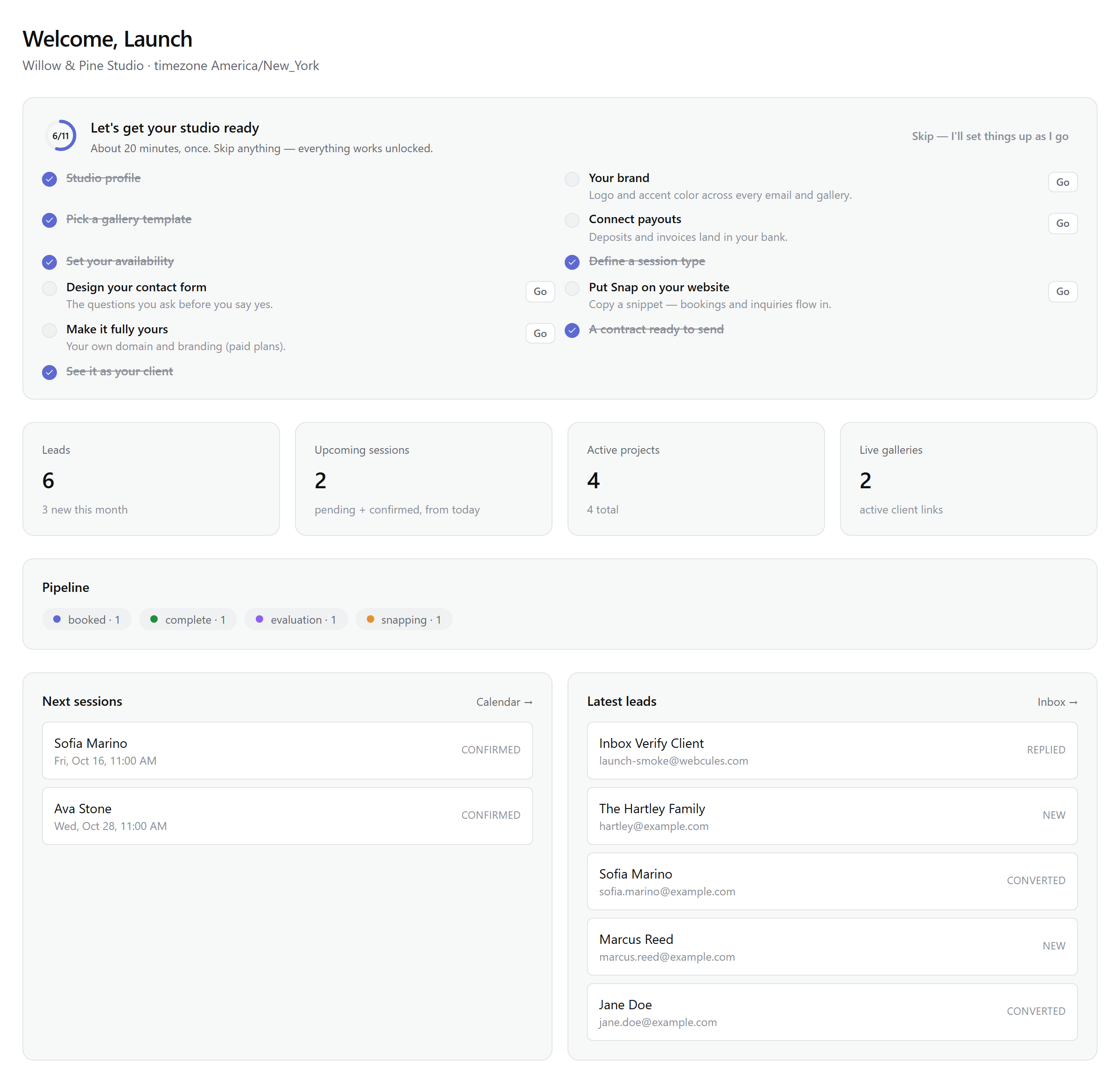
Overview and demo
Snap is your studio's back office. The dashboard sidebar has seven working areas:
- Overview — your studio at a glance: project pipeline stats, recent leads, and the setup guide checklist.
- Leads — the inbox where every inquiry lands, ready to triage and reply.
- Calendar — bookings, committed shoot days, and dated open leads, plus your availability rules.
- Projects — the kanban pipeline where every job lives from booking to delivery.
- Galleries — every client gallery link you've sent, with its status and controls.
- RAW Vault — cold storage for RAW files (Lite and above, with a small trial pocket on Free).
- Transactions — every payment your studio has taken, with refunds and disputes.
Note: Snap never shares data between studios — what you build, seed, and send is yours alone.
Create your studio
- Sign up with your email — the first screen asks for your studio name and timezone, and the email where new inquiries should land.
- Pick a plan — Free to try the whole thing, Lite when you're growing, and Studio for the working pro's tier. You can change anytime from Settings → Billing; see Plans & tiers for exactly what each includes.
- Land in the dashboard — the Overview page greets you with a setup guide: an eleven-item checklist derived from what your studio has configured so far. It updates itself as you go, and it never nags about things you already did.
Work through the setup guide
The checklist follows the order real studios finish it in. Five steps matter most:
- Your brand — a logo and accent color that carry across every email, gallery, and invoice. In Settings → Brand.
- Connect payouts — a few minutes with Stripe Express, and money clients pay lands in your bank. Snap never holds it. In Settings → Payouts; see Payouts.
- Set your availability — weekly hours and blackout dates that decide what clients can book while you sleep. In Calendar → Availability; see Calendar & availability.
- Define a session type — length, price, and deposit for what you sell. In Templates → Session types.
- Put Snap on your website — one script tag adds the contact form or booking calendar to any site. In Settings → Embeds; see Embeds.
The remaining steps — designing your contact form, getting a contract ready to send, and making it fully yours with a custom domain (paid plans) — are each one click from the checklist, deep-linked to the exact screen.
See it as your client
The last checklist item is an action, not a link: send yourself a demo gallery. Snap creates a real project with sample images, builds a real gallery, and emails it to your account's address — so you experience the exact journey your clients get: the verified link, the favorites, the slideshow, the download controls. It's the fastest way to understand what your studio just signed up for.
Getting the most out of Snap
Part-timers
The booking page and inbox are the whole business at $0: inquiries arrive, you reply, clients book and pay deposits. Free includes 20 GB with the full client gallery feature set for five active galleries.
Working pros
Studio ($29/mo) is the tier most full-time photographers settle on: white-label galleries on your own domain, unlimited galleries and templates, RAW storage without the trial cap, and a 500 GB pool. See Plans & tiers.
Teams and studios with multiple brands
Link studios into one family (3 on Lite, unlimited on Studio and above) — storage and billing pool across all of them, and you switch studios from the sidebar. Team seats, roles, and member access are covered in Plans & tiers.