Lead inbox
An inquiry is a lead; a lead is a conversation. Every inquiry now opens a thread in your inbox automatically, and the Leads page underneath tracks the pipeline: who is new, who has been answered, and who said yes.
How leads arrive
- Your contact form and widgets. The embeddable contact form and lead form on your website submit straight into the pipeline, carrying every answer — including file uploads — which show under Form answers on the lead. See Embeds.
- By hand or by CSV. The Add lead button takes walk-ins and phone enquiries (name, email, phone, shoot type, event date, message); Import CSV brings a spreadsheet across in one pass, quietly — no inbox notification per row.
- Replies to your email. When a client answers a Snap email from their own inbox, the threading pipeline files it on the same conversation — however mangled the mail client left the headers. A cold email from someone brand new matches no conversation, so it waits under Needs triage instead of becoming a lead.
Every new inquiry also drops an item into your inbox — New inquiry with the message as the preview — so the first touch never waits in a table.
Note: A direct booking through your booking page doesn't create a lead — if that person already has an open lead, it's marked converted on its own so the same inquiry can't sit in two places at once.
The leads pipeline
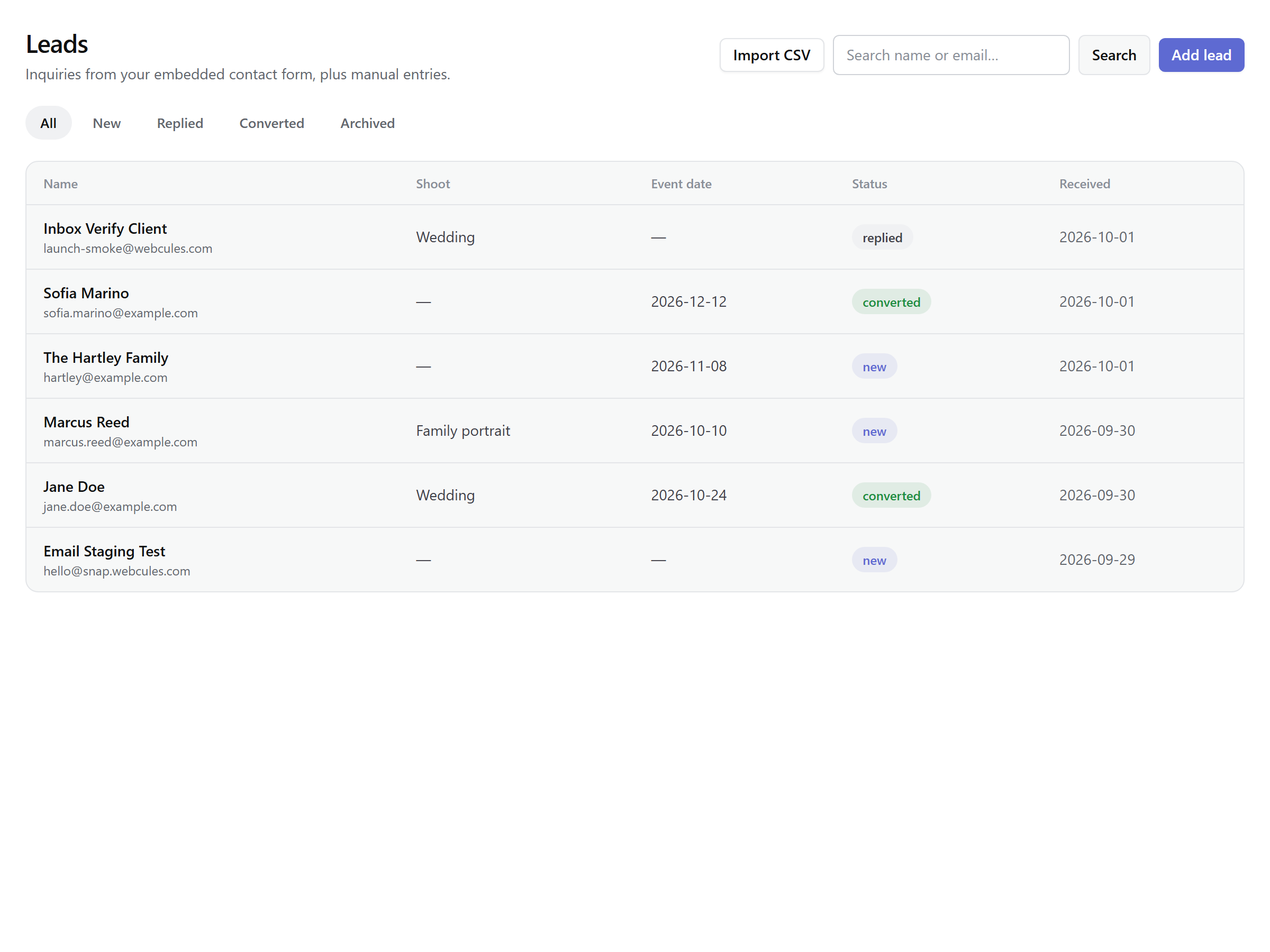
The Leads page is the deal list: status tabs — All, New, Replied, Converted, Archived — a name-or-email search, and a table showing the shoot, event date, status and when the inquiry arrived, newest activity first. Two statuses move without you: a sent reply marks a lead replied, and conversion marks it converted. Use Archive to shelve the time-wasters (Restore undoes it) — archived leads never block a fresh inquiry from the same person later. Open leads that carry an event date also appear on your calendar as tentative days.
Threads live in the inbox
Each client has one conversation, and a lead's history lives inside it. Open a lead and you get the record — contact details, form answers, the project once it exists — plus a conversation card whose Open in Inbox button jumps straight to the thread. Reading and replying happen there, in exactly one composer; the lead page keeps none of its own.
In the reading pane, client emails render inside a locked sandbox — scripts dead by policy, remote images click-to-load, quoted history collapsed behind a toggle — and your studio's own events (bookings, contracts, payments, gallery activity) interleave as compact cards with deep links. The thread header links the lead and the project, and an email that arrived unmatched can be attached to the right client, lead or project from Needs triage in one click.
Replying & the composer
Replies send from the conversation's own address on snaphq.app — your studio's display name up front, your contact address as Reply-To — so the client just hits reply and lands back on the same thread. Insert a saved reply… drops in one of your email snippets from Templates → Emails (Templates guide) with merge fields like the client's name resolved for the person you're writing to; + Gallery link inserts their gallery link (replies carry links, not attachments), and your business signature appends itself. A reply that fails to deliver keeps your draft on the thread with a Retry send — and while the Snap inbox is young, Send a copy to your own inbox is on by default (Settings → Notifications → Reply mirroring).
Convert the yeses
When the answer is yes, click Convert to project on the lead. The dialog prefills Project title, Event date, Client email, and Client name from the inquiry — fix anything the lead got wrong and the lead is updated to match — then Create project makes it real: a project lands in Booked on your pipeline, the person is added to (or merged into) your clients, and the lead is marked converted with a link to its project.
No event date? Say so deliberately.
One open thread per email
Two open leads sharing an email would tangle reply threads and client records, so Snap blocks that state outright: manual entry, an email edit on a lead, and conversion all check for another open lead at the same address and refuse to fork it. Closed business doesn't count — a converted or archived lead never blocks a brand-new inquiry from the same person.
Snooze, filters & the keymap
The inbox's speed layer works on inquiries like everything else: tabs — All, Unread, Needs reply (the client spoke last), Needs triage — an unread badge mirrored into the browser tab title, search over titles and previews, a kind filter (press F), and a list/thread split that drags to taste and is remembered. The keymap is Linear's: j/k move, Enter opens, U toggles read, Backspace deletes, ⌘K opens the command menu, ? shows the sheet. Snooze parks a conversation until later today, tomorrow, next week, or a moment you pick — it resurfaces unread Lite. The full tour lives on the Inbox page.